Desk Setup with the M2 Max MacBook Pro!
For the release of the new M2 Pro and M2 Max MacBook Pros, I made another desk setup video: everything on my desk with my new M2 Max MacBook Pro. Fair warning: it’s not the cleanest or prettiest, but it’s functional.
Why the laptop is in front of the display
I keep the laptop directly in front of me and the display behind it. In a previous video I talked about my repetitive strain injury (RSI) in my elbow: moving my right arm between keyboard and mouse thousands of times a day was causing pain. So I have the keyboard and trackpad directly in front of me, keeping my arms straight with no side-to-side movement. And with the larger display directly above the laptop display, I have two displays I look at by swiveling my neck up and down instead of left and right, which eases my neck and back.
If you’d rather use your laptop in clamshell mode, or have a desktop Mac like a Mac mini, a clear acrylic stand from XD Design Studios gives you a similar laptop setup in front of you, essentially the size of a 16-inch MacBook Pro, so you can ditch the mouse.
Chair, desk and mat
- Chair: a Herman Miller Aeron, popular because it’s comfortable and adjustable in lots of ways. It’s expensive, but you get what you pay for.
- Desk: a large 72 × 60 inch L-shaped desk from Uplift, which has done wonders for my workability. I finally have one cohesive desk, with A-roll filming on one side and my workspace on the other. At one point I had four desks in this room, which was a cluster to move around between light stands, products and boxes. Now I have open space to move lights and stands without tripping over them.
- Desk mat: a Grovemade wool desk mat, the first desk mat I’ve actually loved after trying leather, fake leather and plastic. It’s the right size for a 14- or 16-inch MacBook Pro, has the perfect texture for a mouse, protects the desk from drinks and cans, and is comfortable for my hands without getting sweaty like leather or pleather.
The display
The Apple Studio Display, behind the laptop. I’ve used a lot of displays since starting this channel, cheap to expensive, and this is by far the best I’ve used with a Mac. It doesn’t have everything: no high refresh rate, multiple inputs or KVM, which other displays offer. What you get is a design like no other that complements Macs perfectly, a 27-inch 5K panel (almost 15 million pixels), full P3 wide color, up to 1,600 nits, a built-in webcam, and a six-speaker system that’s surprisingly good.
In previous desk setups I used the Kanto YU2 speakers, which I love: real speakers with real stereo separation for anywhere in the room. For now I’m using only the Studio Display’s speakers to minimize what’s on my desk, and they’re fantastic, though I may bring the Kantos back for a bigger stereo sound.
Left to right
- Charging: a Belkin BoostCharge Pro 2-in-1 on the left charges my iPhone 14 Pro and AirPods. I have the 3-in-1 on my nightstand for my Apple Watch, iPhone and AirPods, but prefer the more compact 2-in-1 on my desk, since I charge my watch overnight.
- AirPods Pro 2: quickly my favorite AirPods ever. I used the third generation for a while, but had to try the better noise canceling and transparency mode, and they’re almost part of me. I can leave home without my wallet, but I have to have my AirPods and phone.
- iPhone 14 Pro Max: I’ve had it three or four months and need a long-term review, but it’s a fantastic phone, hard to beat in design, build quality, cameras and software.
- Casekoo Magic Stand case, which sponsored this video: a beautifully designed case for the 14 Pro and Pro Max with a stand hidden in the back ring that holds the iPhone between 40° and 120° for video or FaceTime, and 48 magnets so it works with MagSafe chargers and accessories. There’s a 10% code in the description.
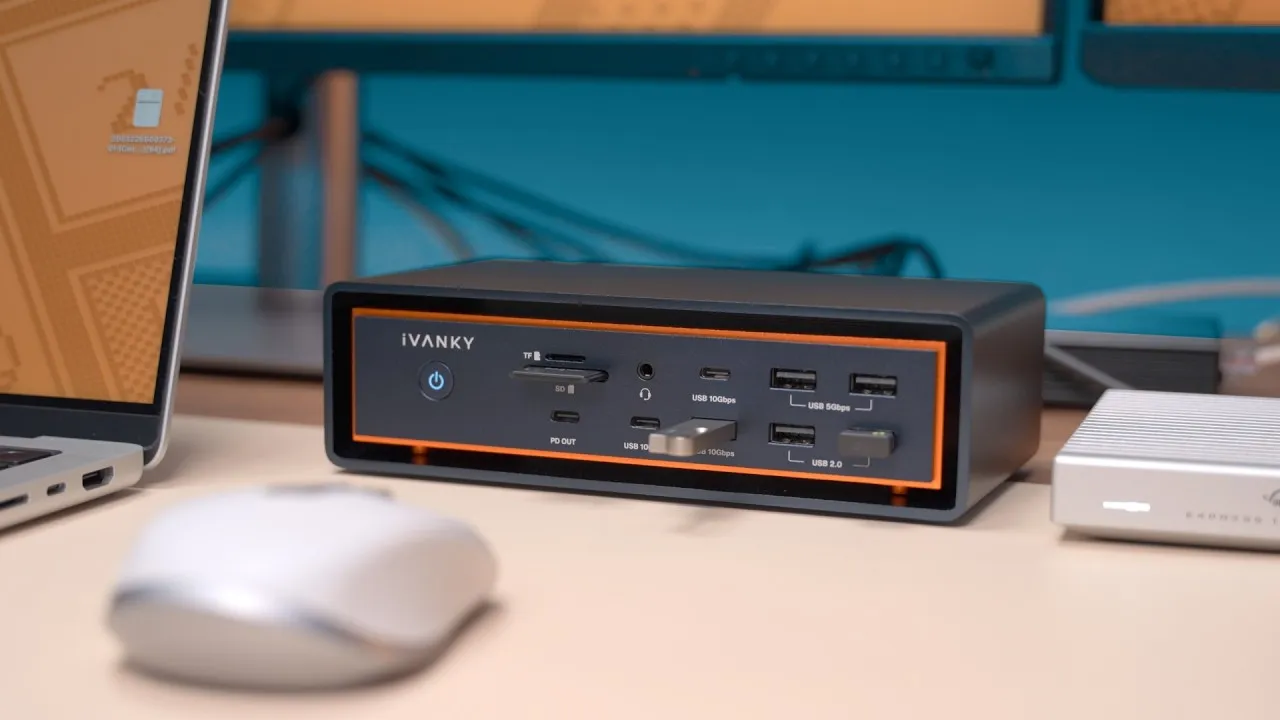
- CalDigit TS4 dock: an accessory you can’t build a desk without: a Thunderbolt 4 dock with three Thunderbolt 4 ports, multiple USB-C and USB-A ports, SD card readers, audio in and out, display out, and 2.5 GbE. I love the front SD slots, which are faster than the Mac’s built-in one (which is a pain to get cards into), and I can use both at once to pull footage off cameras quickly. Most Thunderbolt 4 hubs have only two Thunderbolt 4 ports, one for the MacBook and one for a display or SSD; the TS4’s three let me connect a display, the MacBook and an external SSD or even a 10 GbE adapter. I’ve had it over a year with zero issues. There were reports of connectivity problems and drives dropping out, but CalDigit released firmware updates, and I never experienced them.
- SSD: an NVMe drive in a Thunderbolt-speed USB4 enclosure from ACASIS (40 Gb/s, backward compatible with other USB versions): a 4 TB Sabrent Rocket Q that slides in. Together they get over 2,500 MB/s read and write, fast enough for basically anything, and I’ve run just about everything off it for about a year without a hiccup or heat slowdown. I definitely recommend them.
- Mouse: a Logitech MX Master 3, for when I need a precision pointer (not often, but for thumbnails and similar). It’s one of the most comfortable mice I’ve used, with MagSpeed scrolling (zero friction, fast, like Apple’s inertial scrolling) and a side scroll wheel great for flying left and right in video or audio timelines. It looks beat up from use, and if it died, I’d buy another.
- iPad: my M1 iPad Pro 12.9-inch with cellular and 256 GB, since I felt no reason to get the M2. I use it beside my display for apps that work better on iPad than Mac, like Outlook and Teams, using Universal Control to move my mouse and keyboard over, or Sidecar as another display. It sits on a magnetic stand from Elago, the most Apple-like third-party design I’ve seen, like the M1 iMac stand, and easy to pop off to take a Teams call, doodle or work through email, and pop back on. Or play Call of Duty after a frustrating meeting.
In the corner
- A 10 Gb UniFi switch and an access point.
- A base M1 Mac mini used as a content cache: a macOS feature where an always-on device on your network caches iCloud and Apple software updates, so when a new iPhone update comes out, it downloads once and other devices pull from the cache, saving bandwidth. In the last 30 days, it saved me 60 GB of download bandwidth, with only 13 GB pulled from Apple’s servers.
- A full copy of my Photos library on a CalDigit Tuff Nano Plus, backed up online.
I’ll probably change this again, since that’s what I do, or bring the speakers back. What desk accessories do you use?
Links
- Casekoo Magic Stand Case (sponsored)
- Wallpaper
- Buy the 14” MacBook Pro
- Buy the 16” MacBook Pro
- Keyboard and Trackpad tray
- Human Centric vertical stand
- Grovemade desk mat (code jerry10)
- Studio Display
- Kanto Yu2 speakers
- Xbox controller
- Belkin Boost charge pro 3-in-1
- Belkin Boost charge pro 2-in-1
- AirPods Pro 2
- MX Master 3s mouse
- CalDigit TS4 Dock
- Acasis USB4 enclosure
- Rocket 4tb ssd
- iPad Pro
- Elago iPad stand
- Ubiquity Unified 10gb switch
- Mac mini
- CalDigit Tuff Nano Plus
- MacBook Air M2 vs MacBook Pro 14 M2 Pro
- My iPhone Art
- UNLIMITED Cloud Backup for your Mac with Backblaze
- Best Laptop
- Best iPad
- Mac Studio
- Studio Display
- Bamboo Monitor Stand
- CalDigit TS4
- Synology NAS
- RocketQ NVME SSD
- ACASIS NVME enclosure
- OWC Envoy Pro FX SSD
- Logitech MX Keys Mini
- Apple Magic Trackpad
- Logitech MX Master 3
- AirPods Max
- AirPods Max Stand (ETSY)
- Kanto YU2 Speakers
- Satechi Magnetic Charger 2-in-1
- My Camera
- Secondary Lens
- Sennheiser MKH-416 mic
- Zoom F6 recorder
- Rode VideoMic NTG
- Used DJI OSMO 3 Gimbal for some shots
- Tascam DR-10L Audio Recorder with Lav
Some links in this post are affiliate links, which means that if you click on one of the product links, I may receive a small commission. See my ethics statement.