M4 iPad Pro Full Setup and Migration!
Picking up a new M4 iPad Pro or M2 iPad Air? Here’s everything about migrating from your old iPad: what to do first, the two ways to transfer, issues you might hit, and how long it takes. I moved from my 13-inch M1 iPad Pro to the new 13-inch M4 iPad Pro in Space Black.
Two ways to migrate
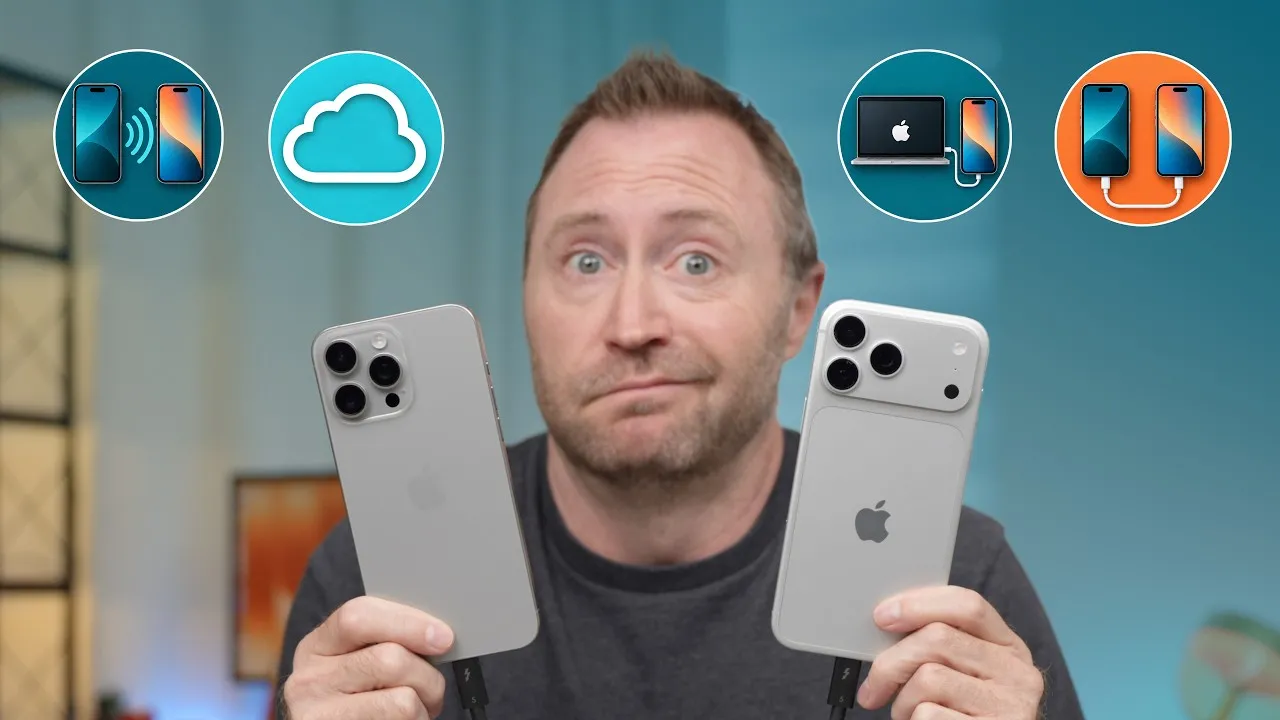
- Direct transfer: the iPads connect over their own Wi-Fi link and move the data. You don’t need fast internet, but both iPads are locked until it’s done, which can take a long time with lots of data.
- Restore from iCloud backup: the new iPad gets set up with the basics, then downloads apps and data in the background while you use it. That’s usually my preference with my 1 Gb/s internet, but it may not be best on slow internet.
Before you start, on the old iPad
Check storage: Settings → General → iPad Storage. I’m using 150 of 256 GB. If your new iPad has less storage than the old one, you’ll need to remove some data. For example, 30 GB of Call of Duty is mostly maps it will redownload, so delete the app. Also look for files stored on the iPad, like a temp folder or old videos.
Check your backup: your name → iCloud → iCloud Backup. See when the last backup was, and back up again right before migrating. Tap your device to see what’s included. I normally exclude Final Cut Pro projects, but turned them on for this.
No iCloud backup or not enough storage? Go to Settings → General → Transfer or Reset iPad → Get Started. Apple gives you a free iCloud backup, kept for up to 21 days, while you move to a new device. Start it before you pick up your new iPad, since a big first backup takes a while.
Quick Start
- Wake the new iPad and swipe up. Bring the old iPad next to it and tap Unlock to Continue. It shares your language, region, Wi-Fi and Apple Account.
- Scan the animated orb on the new iPad with the old one, choose to set it up for yourself, and enter the old iPad’s passcode.
- Cellular iPads are asked to move the eSIM. I use a third-party MVNO, so I chose Set Up Later in Settings.
The software update catch
The new iPad must run the same or a newer iPadOS version than the old one, or the migration won’t happen. My old iPad had 17.4.1 and the new one wanted 17.5, so I installed the update (10–15 minutes). That cancels the migration on the old iPad, so afterwards you start Quick Start again and scan the orb a second time. It’s pretty dumb; why not start with the update?
CalDigit sponsored this video, with its SOHO dock.
Face ID
Since the M4 iPad Pro’s camera is on the long edge, hold the iPad horizontally, put your face in the circle, and move your head around, twice.
Restoring from iCloud
Choose Download from iCloud. Signing in to the Apple Account takes a crazy amount of time, anywhere from 3 to 15 minutes; mine took 5–6. Then choose settings to bring over (Siri, Screen Time, Wallet), automatic updates (I only download automatically), Location Services (on), and re-enter your cards’ security codes for Apple Wallet.
Nice touch: the old iPad automatically backs up again so the restore has the latest data. Then the restore starts.
From starting the restore to a usable home screen took 3 minutes 26 seconds. Apps are grayed out and download in the background, and Settings shows the restore in progress, 87 GB for me, but you can start using the iPad right away, and even prioritize apps to download first.
Direct transfer
I wiped the new iPad and tried the direct transfer. After the same long sign-in, location and Wallet steps, the migration started, with an estimate jumping from a couple of minutes to over an hour and back. From start to desktop it took about 24 minutes, a lot less than I expected. Usually direct transfers aren’t that fast, so it must be the better wireless in these iPads. Apps still finish downloading in the background.
Which should you use?
I’ve always recommended iCloud because you can start using your iPad fastest, as long as you have fast internet. But 24 minutes for a direct transfer wasn’t bad, so give it a shot; it seems better than it used to be.
Links
- CalDigit’s docks and hubs (sponsored)
- Buy the new iPad Pro
- CalDigit TS4
- Mothca Matte Glass protector
- 6 things to know before buying the New iPad Pro and Magic Keyboard
- CalDigit is my dock partner
- https://www.threads.net/@jerryschulzeonyt
- My iPhone Art
- Grovemade Desk Mat and Knife (save 10% JERRY10)
- UNLIMITED Cloud Backup for your Mac with Backblaze
In this video
Some links in this post are affiliate links, which means that if you click on one of the product links, I may receive a small commission. See my ethics statement.