I Tested 4 Ways to Transfer to a New iPhone — Here’s the Best
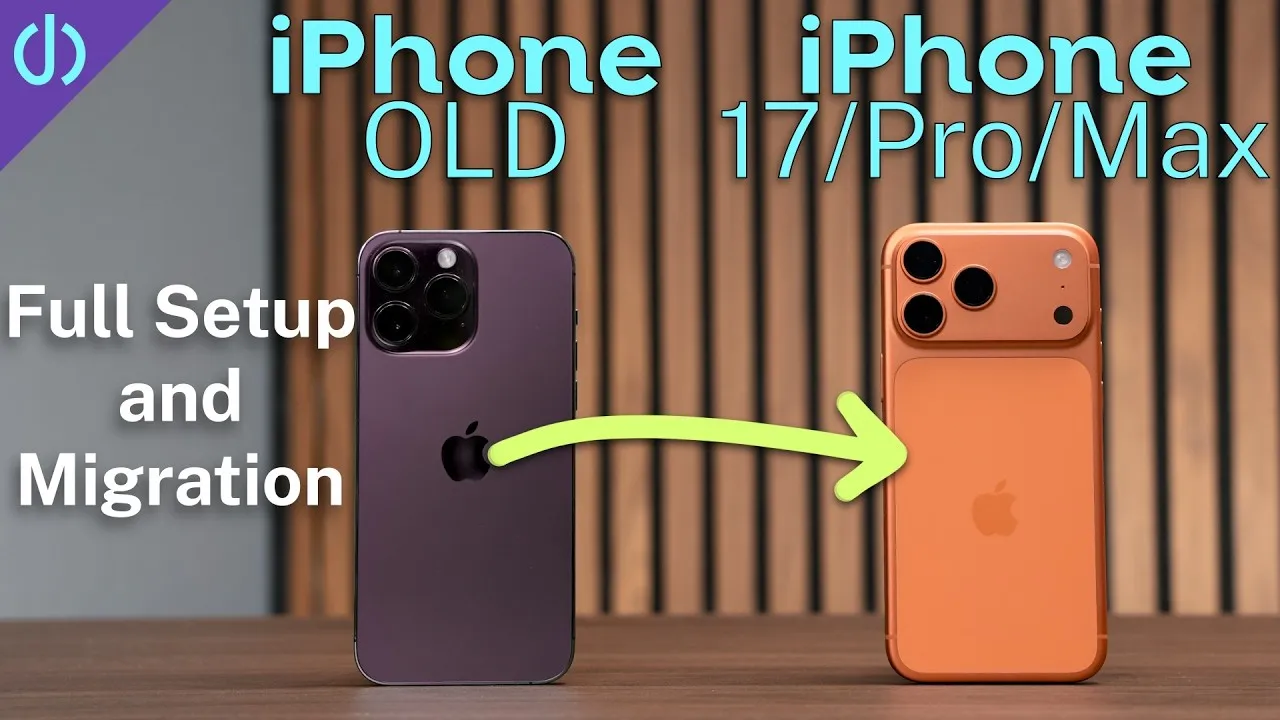
Every time you get a new iPhone, Apple gives you a few ways to move your stuff over: transfer directly from your old iPhone wirelessly, connect the two with a cable, restore from iCloud, or back up to a Mac and restore that. I’ve always preferred iCloud, but I wanted to know which is actually best. So I took an iPhone with about 225 GB of data and tested all four, looking at how long each takes, whether my apps stay signed in, and how long I’m locked out of both phones.
An important caveat about cables: USB-C doesn’t automatically mean fast USB 3 transfers. Some USB-C iPhones, along with Lightning iPhones, are limited to USB 2 speeds, and the cable that comes with your iPhone is USB 2. For fast wired transfers you need USB 3 support on both phones and a USB 3 or Thunderbolt cable.
Your times will differ depending on your data, internet connection, Wi-Fi interference, and Apple’s servers. My times don’t include normal steps like signing in or setting up Face ID, and apps and data keep downloading in the background afterwards.
iCloud
The estimate said 15 minutes, but I was into the new iPhone in 4 minutes. Apps and the rest of the data took another 45 minutes, about 50 in total, and the old iPhone was never locked out.
The downside was passwords. Every app I tested needed me to log in again: social media, smart home apps, email, even Apple Mail with my Gmail account. I’m pretty sure iCloud restores used to keep more logins, but in this test basically nothing stayed signed in.
Direct wireless transfer
The estimate said about two hours; it actually took 24 minutes, then about 25 more for apps. It did much better with logins: my social media apps, my solar app, and my email in Apple Mail all stayed signed in. YouTube, the Gmail app, and my vehicle apps didn’t.
The risk is that both iPhones are tied up. For those 24 minutes I couldn’t use my old iPhone. Mine worked perfectly, but there are reports of wireless transfers stalling for hours, even showing estimates of a day or longer. Not typical, but if something goes wrong, both phones are stuck.
Direct cable transfer
Tip: look at the graphic on the transfer screen. If the phones are actually using the cable, you’ll see a cable drawn between them; if not, you’re still doing a wireless transfer.
The estimate said about two hours; it finished in 18 minutes, then 25 more for apps. This was the fastest method, with the same login retention as wireless. Both iPhones are still tied up during those 18 minutes.
Encrypted Mac backup
The backup took 22 minutes, the restore about 25, then about 25 more for app downloads. Slower than a cable, but with one huge advantage: once the backup is made, the old iPhone isn’t involved at all. If the restore takes longer or something goes wrong, you still have a working phone. It kept my apps signed in about as well as the direct transfers. You need enough storage on your computer, and USB speed still matters, but you can make the backup before your new iPhone even arrives.
What I’d recommend
- Fast USB on the new iPhone and a computer with enough storage: an encrypted computer backup. It’s fast, keeps a lot of logins, and there’s essentially no risk of being stuck without a phone. This is what I’ll probably use.
- No computer, but both iPhones support USB 3: a direct cable transfer. At 18 minutes, it was the fastest.
- Slower USB: choose iCloud if getting into the new iPhone quickly matters most, or a wireless direct transfer if avoiding all those logins matters more than time, knowing both phones are tied up until it’s done.
Links
- Thunderbolt 4 cable
- GameSir G8 Galileo controller
- TechWoven case for iPhone 18 Pro
- TechWoven case for iPhone 18 Pro Max
- Get a PopSocket
- iPhone 18 Pro Setup and Migration
In this video
Some links in this post are affiliate links, which means that if you click on one of the product links, I may receive a small commission. See my ethics statement.