How to setup a new iPhone 17 Pro Max – Complete Setup & Data Migration Guide
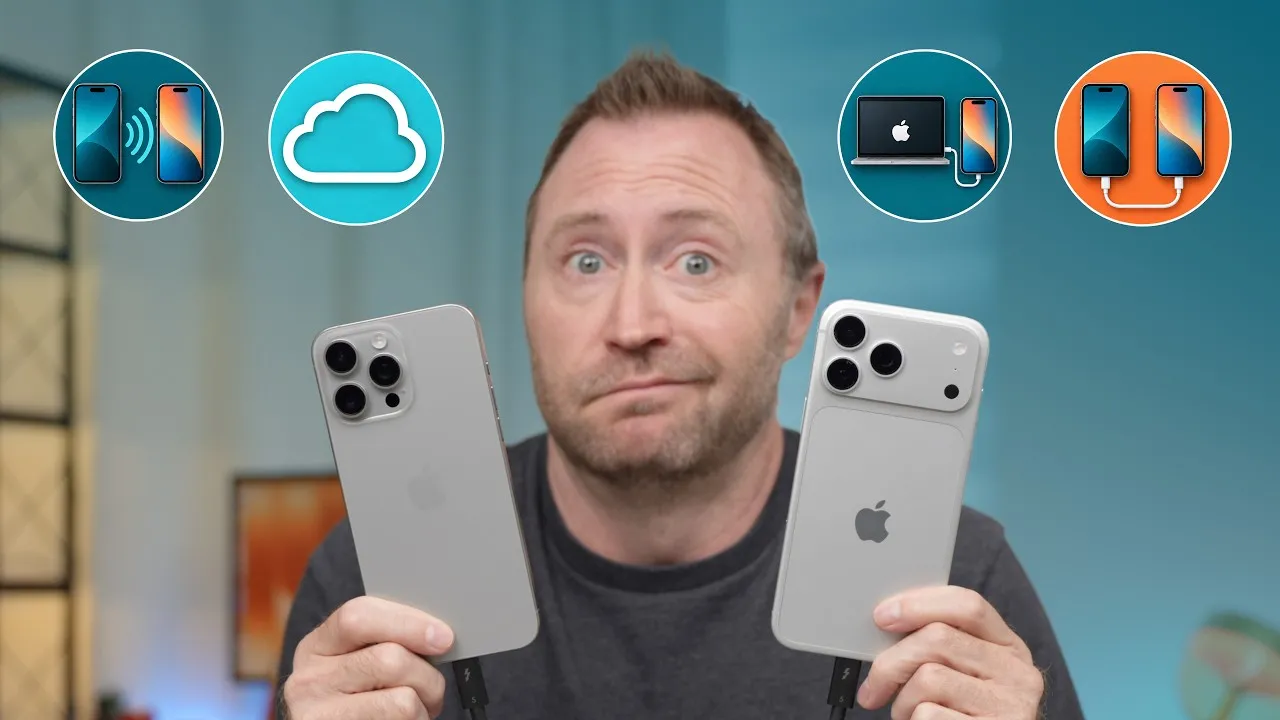
This is the new iPhone 17 Pro Max. If you just got one, or a 17 Pro, 17, or iPhone Air, here’s the full setup, migrating everything from my iPhone 16 Pro: apps, data, photos, iMessages, Apple Watch, Apple Wallet, and phone number.
This video was sponsored by TORRAS.
Which migration method?
Direct Wi-Fi transfer: the two iPhones make their own network and move your data phone-to-phone, which is good if your internet is slow, though apps still download. The downside is that both iPhones are locked for the entire migration. I’ve seen it take 30 minutes, two hours, four hours or longer, and some people get stuck for hours.
iCloud backup: this is my preferred method. You use the old iPhone for the initial setup, then most of the migration happens over the internet, and your old iPhone stays usable. I’ve seen far fewer issues with it.
If you pay for iCloud, check Settings → [your name] → iCloud → iCloud Backup for a recent backup. If you don’t, go to General → Transfer or Reset iPhone → Prepare for New iPhone → Get Started. Apple stores a full backup for free for 30 days.
Setting up
- Choose your language, region, and default appearance size.
- Unlock the old iPhone, tap Continue to set up the new one, and scan the new iPhone with the old one. Confirm it’s for you, and enter the old passcode on the new iPhone so it can decrypt the backup. It activates with Apple.
- I skipped the offered software update for now. Agree to the privacy information, and set up Face ID.
- Choose Download from iCloud. Account setup takes 5–10 minutes.
- Keep everything selected to migrate: apps and data, settings, Wallet, Apple Watch. The old iPhone even starts a fresh iCloud backup on its own.
- I choose to download updates automatically but install them manually. Turn on Location Services. Read up on Stolen Device Protection; I left it off for now.
- Tap Done on the old iPhone. From here you can use it while the new one restores.
- Wallet cards migrated automatically this time, without re-entering security codes. Set up Apple Intelligence; I chose notification summaries for communication and social apps. Then learn about Camera Control, set up Siri, and review emergency SOS.
The iCloud download took about 17 minutes, then the iPhone rebooted. All in, about 20 minutes so far.
Phone number, wallpaper, and the old iPhone
After the reboot, it reconnects to the old iPhone to transfer your phone number. Double-click the side button on the old iPhone to confirm. eSIM to eSIM is seamless. Going from a physical SIM to eSIM, the old SIM stops working. Most carriers support this; if yours doesn’t, you’ll have to call them.
There’s a quick tour of iOS 26, and you can switch to the new iPhone 17 wallpapers, because it has to look new. Apps keep downloading in the background (I still had 26 GB to go), and you’ll likely have to sign back in to many apps.
When the old iPhone offers to erase itself, tap Not Now. I’d wait a few days, a week, or as long as you can before sending it back, to make sure everything works on the new iPhone.
When the Apple Watch doesn’t migrate
Usually I get a pop-up on my watch, but not this time, and Finish Pairing in the Watch app said it couldn’t connect. It happens. To fix it, unpair the watch from the old iPhone (Watch app → All Watches → Unpair), keeping your cellular plan. Then on the new iPhone, forget the ghost watch, tap Add Apple Watch, scan it, and restore from your most recent backup. Set a passcode, text size, activity goals, and health and safety settings, then let it sync. Like everything Apple Watch, it takes a few minutes.
Links
- Shop TORRAS Q3 Air at Website
- Shop TORRAS Q3 Air at Amazon
- Cheap 5K vs Apple Studio Display
- The Everyday Mac Display - BENQ MA270U
In this video
- 00:00 Intro: Unboxing iPhone 17 Pro Max
- 00:11 Overview of Setup & Data Migration Process
- 00:19 What Gets Transferred
- 00:27 Migration Methods Explained
- 00:41 Wi-Fi Migration Pros & Cons
- 01:22 Why iCloud Backup is Better
- 01:50 Free iCloud Backup Option
- 02:30 Begin New iPhone Setup
- 02:53 Quick Start with Old iPhone
- 04:08 iCloud Backup Transfer Flow
- 05:29 Sponsor: TORRAS Ostand Q3 Air Case
- 06:41 Finalizing Setup Options
- 07:02 Apple Wallet & Apple Intelligence Setup
- 08:04 Siri Setup Process
- 09:11 Emergency SOS & Satellite
- 09:36 App Restore Process
- 10:01 Transferring Your Phone Number
- 11:21 Final iPhone Personalization & Settings
- 12:28 Apple Watch Migration Manual Fix
- 13:45 Apple Watch Setup & Restoration
- 17:10 Final Thoughts & What’s Next
- 18:50 Outro & Upcoming Comparison Video
Some links in this post are affiliate links, which means that if you click on one of the product links, I may receive a small commission. See my ethics statement.