Logitech Combo Touch for iPad 10th Gen! A Few Problems...
Logitech’s Combo Touch cases have been some of the best accessories I’ve found for any iPad. Logitech has made them for the iPad Air, the iPad Pro (11 and 12.9 inch) and the regular 10.2-inch iPad, and now the 10th-generation iPad. It’s similar to Apple’s new Magic Keyboard Folio, but I’ll compare them in another video. I really love the detachable keyboard idea; the kickstand isn’t my favorite idea, but Logitech does it right.
In the box
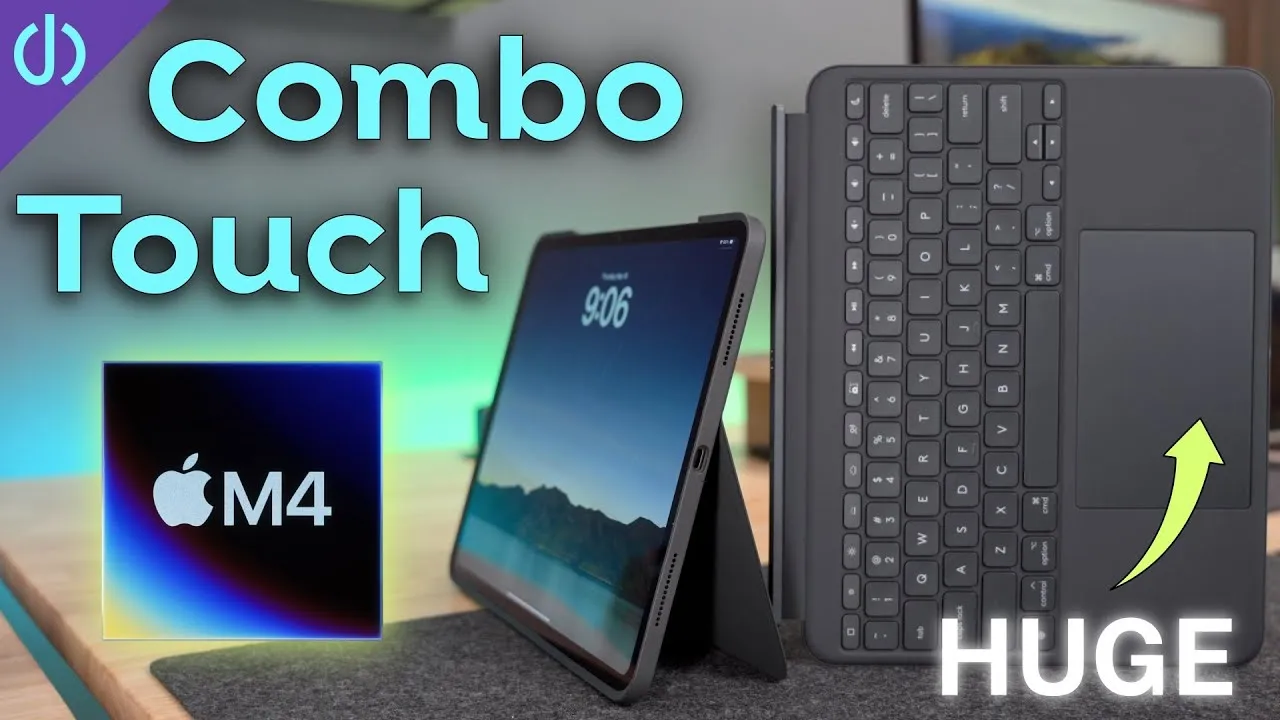
- The keyboard and trackpad, completely detachable, so you can use the iPad with or without them. It’s a full-size keyboard with a full function row, and a good-size glass trackpad.
- The case, covering all sides of the iPad, with a built-in kickstand.
- A simple quick start guide: put the iPad in the case, connect the keyboard, insert the pencil.
The Logitech cases use a textile material on the back, almost like jeans, with a slight texture that feels really good and does a better job repelling dust, dirt, grime and oils than the Magic Keyboard material.
Around the case: a loop on top for the Apple Pencil (or the Logitech Crayon, with a new USB-C version for this iPad), cutouts for the volume buttons, the home button with Touch ID, the speakers and the USB-C port. Unlike the iPad Pro and Air, whose pogo pins are on the back, the 10th-gen’s pogo pins moved to the bottom, so the keyboard passes through the bottom of the case and connects directly to the iPad.
Problem 1: getting the iPad in
Logitech recommends pushing the iPad in at the top and snapping the bottom. It’s snug, which is good for a case, but this was extremely tight. It took a lot of force, and the rubber edges were too rigid to flip over and form around the iPad, leaving some yellow showing and a visible indentation. Other Combo Touch cases had some give and let iPads in more easily. I took it out (not too difficult: peel a corner and pop it out), and tried the opposite of Logitech’s instructions, bottom first, then the top, which fit a bit better, though the case now looks a little beat up. The case is snug and won’t come off the iPad, so it protects against bumps and slight drops. But it should feel better for $160.
Problem 2: the app and firmware
The keyboard attaches magnetically to the bottom with a satisfying snap, and then the Logitech app wanted to update the firmware, up to 5–10 minutes. After about five minutes: “Something went wrong.” After another five, it still wasn’t completing, and the app offers nothing else until the update works. Maybe I got a bad one, or there’s a firmware issue to work out, and hopefully it’s resolved quickly.
Problem 3: the keyboard can’t flip around
Unlike previous Logitech keyboards, you can’t wrap this around to put the keys on the back, or connect it to sit on the back: the magnets don’t line up. That’s a downgrade I wasn’t expecting: it was handy to fold the keyboard around while reading and not forget it somewhere.
What I like
- The kickstand is extremely adjustable compared with other cases, and you can get a bigger angle than the Magic Keyboard Folio: avoid glare, lay it low for drawing, prop it for a movie, or set it up with an Xbox controller for Call of Duty. And with the camera now in the center of the landscape edge, video calls come at a proper, not unflattering, angle.
- The pencil loop holds the Apple Pencil (the first generation, which works with this iPad) snugly. My daughter hasn’t lost hers once since using the Combo Touch on her 9th-gen iPad.
- The keyboard feels like the previous Combo Touches and the Magic Keyboard: a good amount of travel for what it is, not quite full-size on this iPad, but easy to type on and easy to get used to.
- The function row: a home button, screen brightness, a virtual keyboard key, a one-button screenshot, keyboard backlight brightness, media controls and volume. It’s slightly different from the Magic Keyboard Folio’s, but has what you’d use. And it’s backlit, which isn’t common on third-party keyboards. There are no batteries to charge: it snaps on and works.
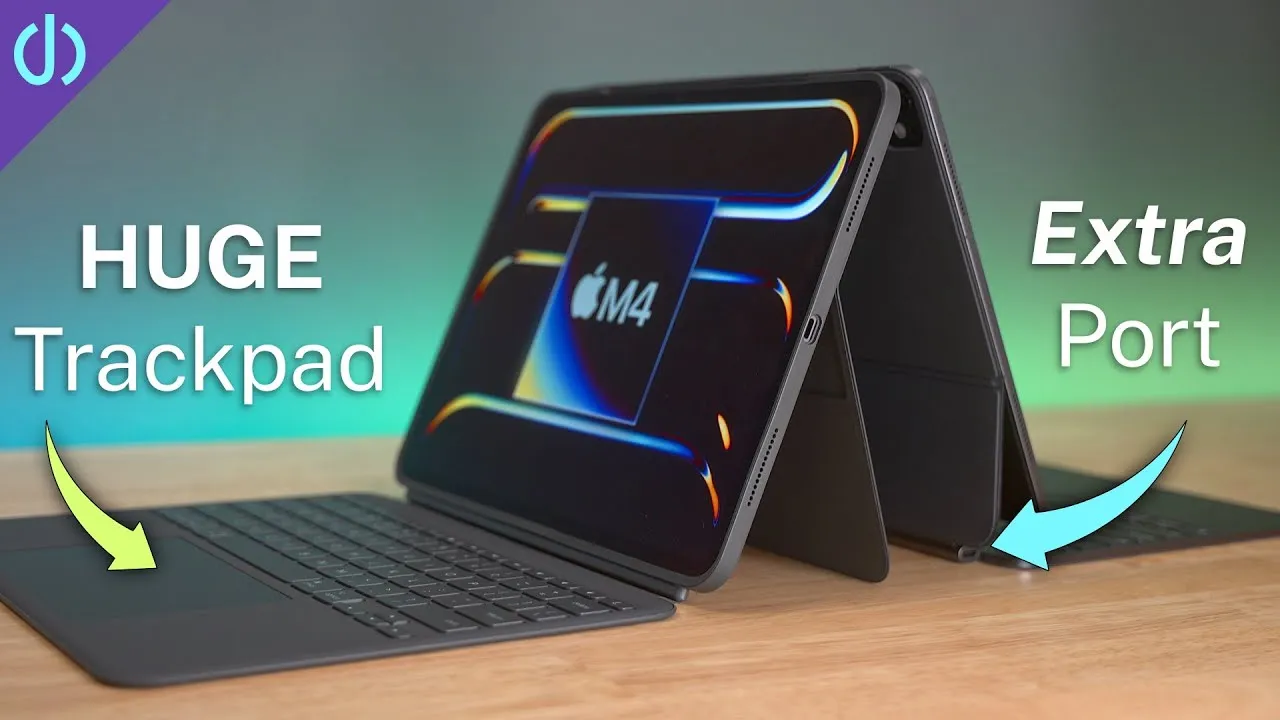
- The trackpad is a good size, multi-touch (three-finger swipe to go home or switch apps, two-finger scroll), smooth and quick with no delay. It’s a diving-board style, so clicks register near the bottom but not at the top.
- The folio-style cover it makes when closed feels solid and won’t slide around and scratch your screen.
Verdict
Some of what I don’t like may come down to this being the very first run: the rigid edges, the firmware trouble. The iPad is protected inside, so you needn’t worry, but getting it in should feel better at this price. I’ll compare it directly with the Apple Magic Keyboard Folio. Is this something you’ll pick up?
Links
- Buy the Combo Touch
- Best Accessories for iPad 10th Generation
- My iPhone Art
- UNLIMITED Cloud Backup for your Mac with Backblaze
- Best Laptop
- Best iPad
- Mac Studio
- Studio Display
- Bamboo Monitor Stand
- CalDigit TS4
- Synology NAS
- RocketQ NVME SSD
- ACASIS NVME enclosure
- OWC Envoy Pro FX SSD
- Logitech MX Keys Mini
- Apple Magic Trackpad
- Logitech MX Master 3
- AirPods Max
- AirPods Max Stand (ETSY)
- Kanto YU2 Speakers
- Satechi Magnetic Charger 2-in-1
- My Camera
- Secondary Lens
- Sennheiser MKH-416 mic
- Zoom F6 recorder
- Rode VideoMic NTG
- Used DJI OSMO 3 Gimbal for some shots
- Tascam DR-10L Audio Recorder with Lav
Some links in this post are affiliate links, which means that if you click on one of the product links, I may receive a small commission. See my ethics statement.