How to Setup a NEW iPhone 16 or 16 Pro AND Transfer Your Data!
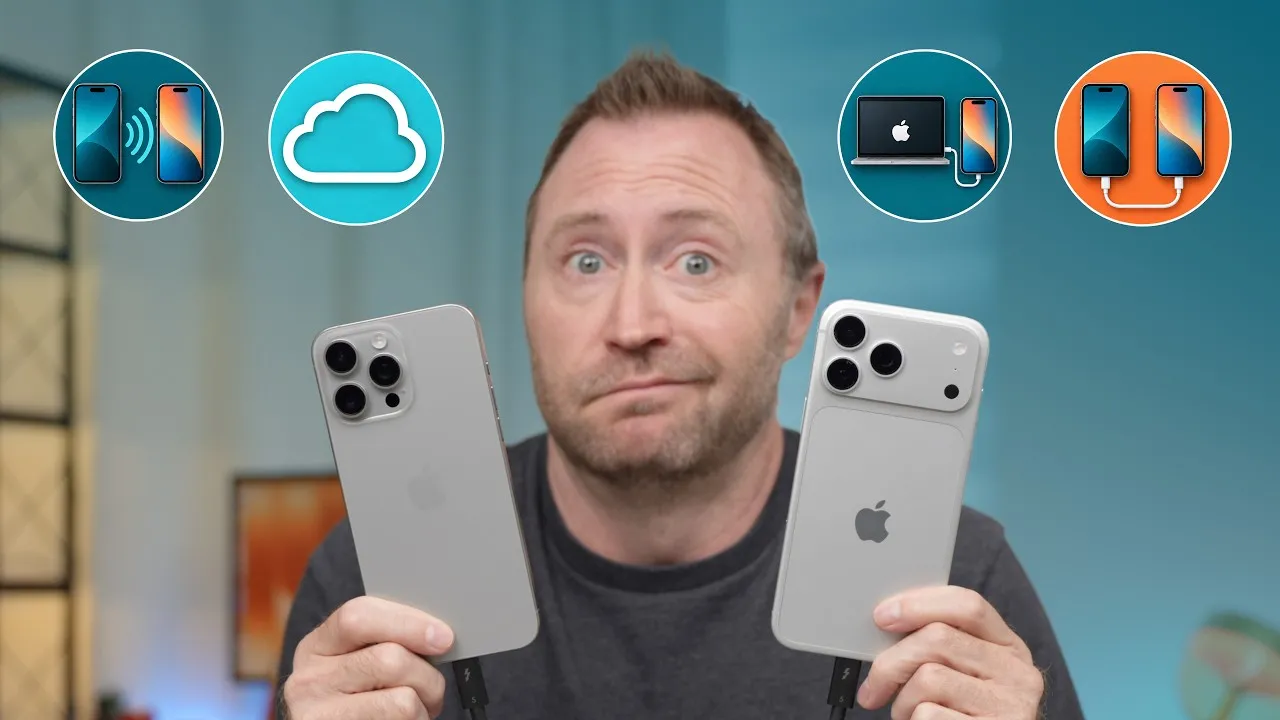
Just got a new iPhone, like this iPhone 16 Pro, and wondering how to move everything from your old one? I set it up and migrated everything from my iPhone 13 Pro: apps, data, photos, Apple Wallet, my phone number, and even my Apple Watch.
Two ways to transfer
- Directly from the old iPhone to the new one over Wi-Fi. Both phones are locked up until it’s done, which can take 15, 30 or 60 minutes or more.
- Restore from an iCloud backup. It downloads only what’s needed to get started, so you can use the new iPhone quickly while the rest downloads in the background, and the old one is free the whole time.
I prefer iCloud.
Back up first
On the old iPhone: Settings → your name → iCloud → iCloud Backup. You can see when you last backed up, what’s included under This iPhone, and the backup size. Tap Back Up Now for a fresh copy.
No iCloud+ storage? Apple lets you back up for free, kept for up to 30 days, when moving to a new device. Go to Settings → General → Transfer or Reset iPhone → Prepare for New iPhone → Get Started, and it backs up everything even without paid storage. So if your new iPhone won’t arrive for a few weeks, that’s fine.
What’s in the box
The iPhone and a USB-C cable, and that’s it, no power adapter. UGREEN sponsored this video, with its Uno charger line.
Quick Start
- Turn on the new iPhone next to the old one. The old iPhone asks to help set it up; tap Continue and confirm with Face ID.
- Scan the animated pattern on the new iPhone with the old iPhone’s camera.
- Choose to set it up for yourself, and enter the old iPhone’s passcode. (Don’t judge my four-digit passcode; I know the risks.) Wi-Fi and your Apple Account carry over, so you don’t even type your password.
Transfer your phone number
In the US, new iPhones are eSIM only, so you can’t just move a physical SIM card. I haven’t had any issues with eSIM in the last few years. With AT&T, T-Mobile or Verizon it’s seamless: choose Transfer from Another iPhone, confirm, and double-click the side button on the old iPhone, like Apple Pay. Mine took about a minute and a half. With a smaller carrier (an MVNO), you may need to tap Set Up Later in Settings and use the carrier’s app afterwards.
Face ID
Look at the camera and roll your head in a circle, twice. If you still wear a mask often, you can add Face ID with a mask; I’ll do that later in Settings.
Transfer your data
Choose From iCloud and sign in. For some reason this took seven or eight minutes for me, which makes no dang sense; hopefully yours is faster. Pick your backup and what to bring over: apps and data, settings, Apple Wallet, and your Apple Watch. Then:
- Automatic updates: I let them download but install when I’m ready.
- Location Services: on.
- Re-enter the three-digit security codes on the back of your cards to add them back to Apple Wallet.
Now the old iPhone is done and you can use it again while the new one restores. Doom-scroll, check email, use your apps. That’s why I do it this way. There’s also a quick intro to Camera Control. The restore took about 10 minutes (Apple’s servers were busy on launch day), and the countdown jumped around, so don’t trust it.
Apple Watch
Something I didn’t expect: when my watch asked for its passcode, it moved to the new iPhone by itself. In previous years you’d get a prompt and go through a full restore. This seems to be new in iOS 18; coming from iOS 16 or 17 you may still get the old process, so watch for messages on your wrist.
After setup
Apps keep downloading in the background, along with photos and iMessages in iCloud. You’ll need to sign back in to many apps, like Threads, for security. But you can start using Phone, Mail and everything else right away.
Links
- Ugreen UNO Charger 100W(20% OFF)
- Ugreen Uno 2-in-1 Magnetic Wireless Charger 15W(30% OFF)
- Ugreen UNO Series
- Ugreen Official Store Website
- 15” Surface Laptop 7 X Elite vs 15” MacBook Air M3
- CalDigit is my dock partner
- https://www.threads.net/@jerryschulzeonyt
- My iPhone Art
- Grovemade Desk Mat and Knife (save 10% JERRY10)
- UNLIMITED Cloud Backup for your Mac with Backblaze
In this video
Some links in this post are affiliate links, which means that if you click on one of the product links, I may receive a small commission. See my ethics statement.