The Best MacBook Pro M1 Desk Setup 2020 | Accessories for your MacBook Air and Pro M1
You bought a new MacBook Pro or Air with M1 and want a full desktop experience. It all starts with my new M1 MacBook Pro (16 GB, 1 TB), which I really love despite a few faults: it’s faster in most day-to-day work, and I wanted to see whether it could replace my iMac for desktop use.
Laptop stand
The MacBook Pro sits on a gray aluminum stand from SurmountWay (Amazon): sturdy with a solid base and adjustable in several ways (loosen the side knob for height, swivel the pillar, tilt the platform, with rubber pads). It matches the MacBook; you can also get silver and from other companies, selling the exact same item (I know because I accidentally bought a silver one from a different company twice). I prefer a stand to a clamshell stand because I want to use Touch ID for unlocking and Apple Pay.
Display: BenQ PD3220U
Connected with a single Thunderbolt cable: a 32-inch 4K monitor that I love, with Thunderbolt, DisplayPort and HDMI, USB ports and a headphone jack on the side. It’s modern, with slim bezels and a gray aluminum base that adjusts for height, tilt and swivel and rotates 90 degrees. The colors out of the box look amazing: factory calibrated in a P3 mode by default, plus an M-Book mode that tries to replicate how Apple calibrates its monitors, and does a really good job. I also used a SpyderX Elite to calibrate both of my monitors so my videos look the same on either.
One issue right now: a compatibility problem between M1 Macs and this display over Thunderbolt or DisplayPort. Unless I use HDMI, I’m limited to 30 Hz, which feels choppy. I hope Apple or BenQ fix it soon; in the meantime, I use a second adapter from the MacBook for 60 Hz over HDMI.
BenQ ScreenBar
A task light on top of the monitor, a game changer for late nights or rooms with poor lighting: it shoots light down and away from the monitor to light your workspace without casting light or glare on the screen. It lights my keyboard and mouse area and makes it easier to read things in front of me. It sits on a counterweight, gets power from USB or an adapter and fits thin to thicker monitors. Buttons set the brightness and color temperature, or an auto mode adjusts to ambient light. It softens the blast of light from the display and also makes a fine night light.
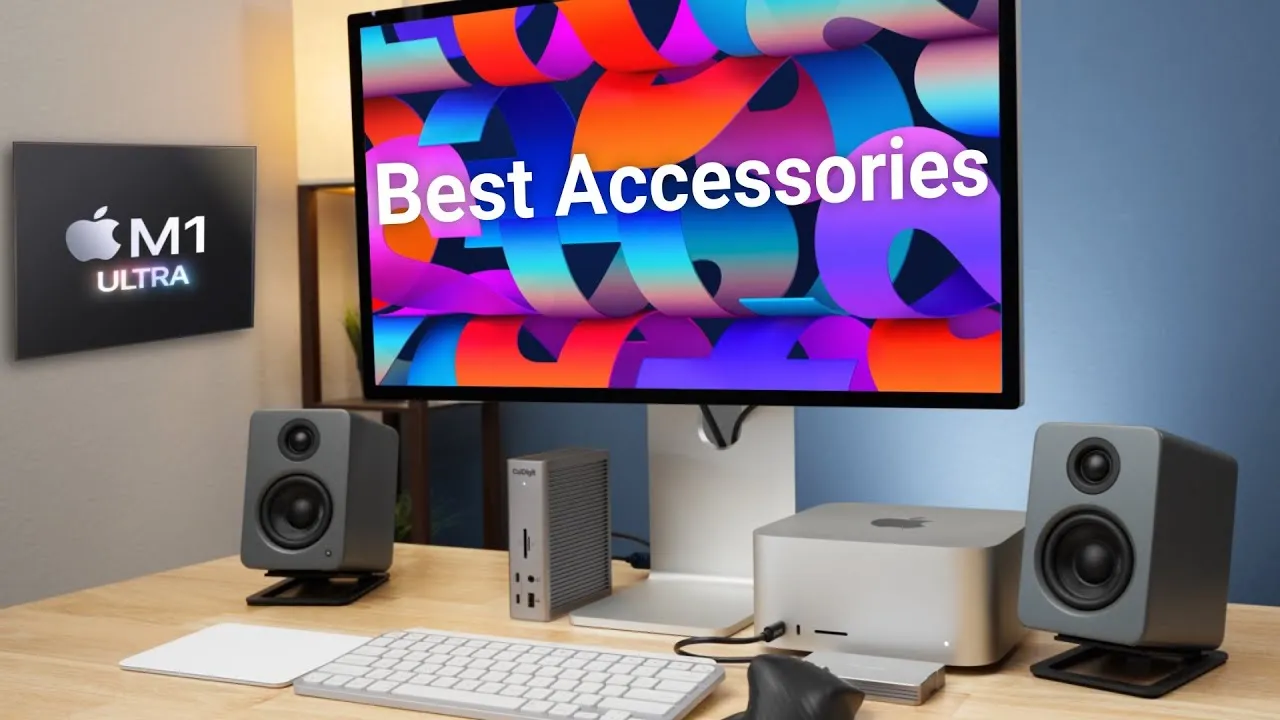
Speakers: Kanto YU2
The MacBook Pro’s speakers are good but nowhere near the iMac’s for desktop use. I went with the matte gray (other colors: black, white, red and bamboo). They have a solid weight and separate tweeters and drivers. Three things make them perfect for me:
- A USB DAC, so I connect over USB instead of a second audio cable and control the volume from the MacBook (speakers using aux in risk over-amplification between device and speaker volume).
- The speakers connect to each other with standard speaker wire, so the cable can be as long or short as I want.
- They sound pretty good: much more volume than the MacBook’s speakers and more range than the iMac’s, filling the room with loud music or movies without distortion, and reproducing voice well for editing.
One issue: when I disconnect the MacBook for a while and plug it back in, the speaker volume is sometimes nearly maxed out when I hit play. I’m not sure whether the MacBook is confused about audio levels.
Dock and charger
Below the monitor is a cheap 2019 Samsung Qi charger for my phone and a CalDigit TS3 Thunderbolt dock, with everything I need for a desktop: on the front, an SD card reader, audio in and out, USB-C and USB-A; on the back, four USB-A, a USB-C 3.1 Gen 2 port, Thunderbolt out, Ethernet and optical audio out. It connects my speakers and an SSD, and the front ports handle SD cards and headphones.
Keyboard, mouse and trackpad
- Apple Magic Keyboard: I like how the keys feel, and it’s essentially the same as on the MacBooks, so there’s no muscle memory to relearn. I’d forgo the external keyboard and stand and just use the MacBook in front of me if I didn’t prefer physical keys to the Touch Bar. I hope Apple adds the new dictation and sleep keys like the new Air. I have the silver and white keyboard because I already had it; I like the space gray ones, but those only come in extended versions, and I want it compact.
- Logitech MX Master 3: I recently bought it to replace the Magic Mouse. The scroll wheel can be free rolling like the Magic Mouse’s inertial scrolling; the side wheel isn’t free scrolling, but macOS seems to recognize some inertia, and Final Cut scrolls left and right with ease; there are buttons for macOS gestures and forward/back. Having different buttons for different tasks, rather than everything on the Magic Mouse’s touch surface, is refreshing: with the Magic Mouse, I always had to keep my middle finger hovering because resting it and clicking with my index finger registered a right click.
- Magic Trackpad: after 8 months of the iPad Pro and MacBook trackpads, some things are just easier with gestures, like zooming and switching desktops.
Desk mat and desk
The three input devices sit on a MoKo desk mat: polyurethane leather, about $15, 32 by 16 inches, with enough grip for the keyboard and trackpad and smooth enough for the mouse, waterproof and double sided. I went with orange, since everything else is black, gray or silver (let me know if there’s a better color). The desk is an IKEA Skarsta sit-stand, 63 inches wide, manual and sturdy and cheap for what it is; the white top isn’t super durable, so I covered it in vinyl film from D-C-fix. Also up here: my Eero Wi-Fi (the basic 3-pack replaced my Google Wi-Fi) and a Lars Ulrich bobblehead. On the back is a LIFX Z starter kit LED strip, like Hue strips. Underneath are cable management trays Caleb from DSLR Video Shooter recommended and power strips (“life is too short for cable management”).
What I’m missing is decent studio headphones; I’m not paying $500 for the AirPods Max, “unless you see me reviewing them in the future.” For now, I wear $15 Skullcandy headphones from an airport kiosk, which is probably why my audio isn’t great.
Verdict
It’s not a bad setup: a great computer with a fantastic monitor, speakers and all the ports I need. But it’s cumbersome with the power outlets and cables, plus issues like being limited to 30 Hz or strange volume settings, and you have to choose whether to have the laptop on a stand, open in front of you, or in clamshell. It will never be as clean as an iMac. As Matt from Yay Computer says, “Turning a MacBook into a desktop computer is an exercise in imperfection.” Do you prefer a laptop at a desk, or an all-in-one plus a laptop for mobile use? If you’re deciding between the M1 Air and Pro, see my video on that.
Links
- UNLIMITED Cloud Backup for your Mac with Backblaze
- My M1 Video Playlist
- MacBook Pro M1
- MacBook Air M1
- Gray Aluminum Laptop Stand
- BenQ 32” Thunderbolt Monitor
- BenQ ScreenBar
- Kanto Yu2 Speakers Matte Gray
- CalDigit SOHO
- CalDigit TS3
- Apple Magic keyboard
- Apple Magic Trackpad
- MX Master 3 Mouse
- Desk Mat Moko PU Leather
- Eero Mesh 3 pack
- Ikea Skarsta desk
- Desk wrap dc fix Baltimore Tobacco
- LIFX Z LED Strip Starter Kit
- Cable management trays
- Tessan 8 port power strips
- AmazonCommercial desk chair
- • M1 MacBook Issues Updates
- • iM1 MacBook Issues
- • CalDigit docks for M1 MacBooks
- • Which iPhone 12 will I buy?
- • Turn the iPad into a Laptop
- • Should you get a Magic Mouse for the iPad Pro
- Sony A6400
- Sigma f1.4 16mm E Mount Lens
- Rode VideoMic NTG
- iPad Pro 12.9
- Used DJI OSMO 3 Gimbal for some shots
- Tascam DR-10L Audio Recorder with Lav
In this video
Some links in this post are affiliate links, which means that if you click on one of the product links, I may receive a small commission. See my ethics statement.