iPad Magic Keyboard 6 Months Later
I’ve had multiple iPads since the original in 2010, and each ended up on a desk or in a drawer after a few weeks, waiting for an airplane day. The 12.9-inch third-generation iPad could have suffered the same fate if not for mouse support and the iPad Magic Keyboard. After six months, is it worth it? It changed every perception I’d had about the iPad over ten years, transforming it from the de facto content consumption device for travel into, at times, the only computer I’d use for months on end.
The hinge
Unlike any hinge I’ve seen: actually two hinges. The first raises the iPad off the keyboard and the second folds it back, bringing the bottom of the iPad just above the keyboard for viewing angle adjustments while keeping the center of gravity closer to the front. The iPad attaches magnetically and floats above. It’s unique and functional: unlike the Smart Keyboard Folio, you can set any angle you want, as on a laptop. Many first and third-party keyboard cases have only one or two viewing angles. They work, but a range of motion is huge for usability, whether on a desk or on your lap, adjusting for glare or comfort.
The keyboard
It feels good. On the 12.9-inch, the main keys are full size, and it’s easy to switch between other Apple devices like a MacBook Air or my iMac’s wireless keyboard without rethinking how I type. There’s no function row, which is a little disappointing (adjusting brightness or volume from the keyboard would be nice), which I’m guessing relates to the iPad’s overhang. When I type on the top rows, I frequently hit the iPad with my fingers: I stretch out the fingers I’m not typing with and they rub the bottom of the iPad. It’s more my fault than Apple’s, and it no longer throws off my train of thought, but I wish there were more distance.
The keys are backlit, which makes evening use on the couch or in bed much better. There’s no function row key for brightness; you adjust it in Settings > General > Keyboard > Hardware Keyboard > Keyboard Brightness, but it uses the iPad’s ambient light sensor to adjust automatically, so I rarely need to. The case is very thin, with a low lip, so I don’t raise my wrists much and can type longer on a desk without breaks.
The trackpad
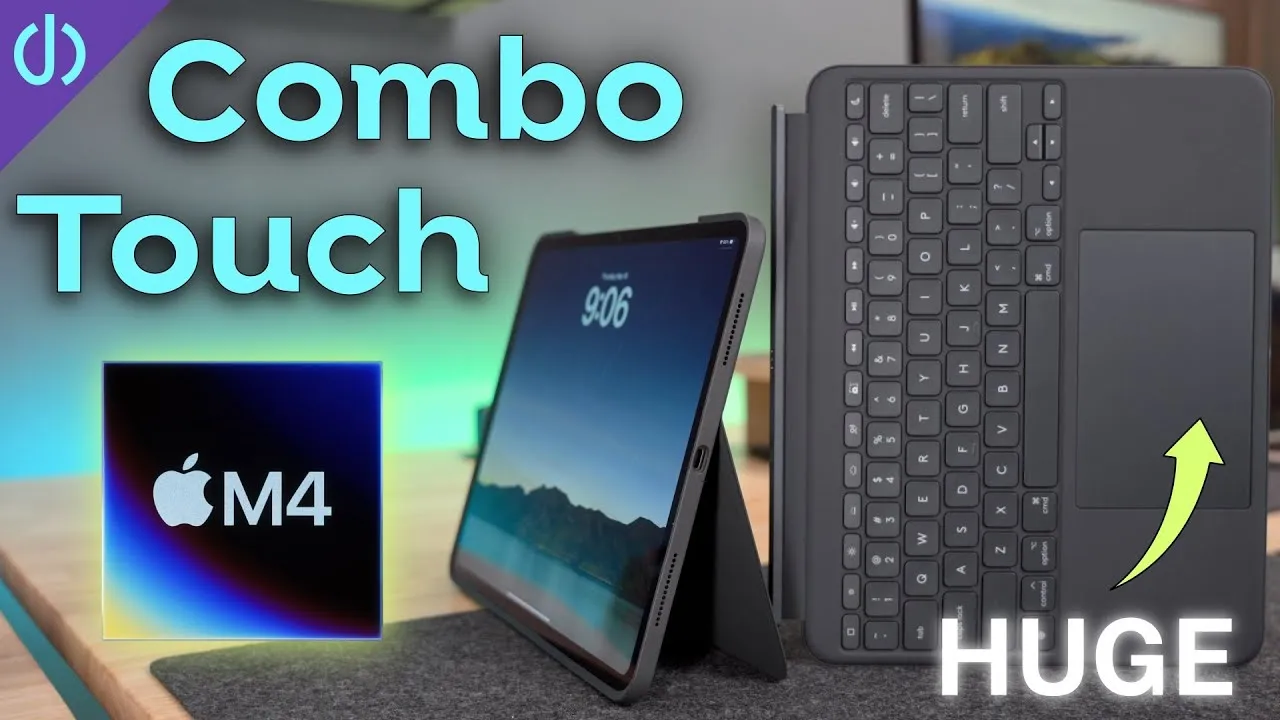
Uses the mouse support added in iOS 13.4. The iPad cursor acts more like a finger: it has a larger touch point and snaps to objects. The trackpad is a strange one for 2020 Apple: a hybrid between modern MacBook trackpads and trackpads of yore. It’s fully glass and multi-touch (swipe between apps or home screens, scroll, go home, adjust settings) and you can click anywhere, unlike the old diving-board style, but like those, it’s mechanical, not Force Touch. It requires more pressure to click than Apple’s other trackpads, and after a long time I feel a little hand fatigue (maybe placebo), so I’m not a fan of the click. I enable tap to click and use it as much as possible. It’s also on the small side, nowhere near Apple’s other trackpads and a hair smaller than the Microsoft Surface keyboard cover.
USB-C passthrough
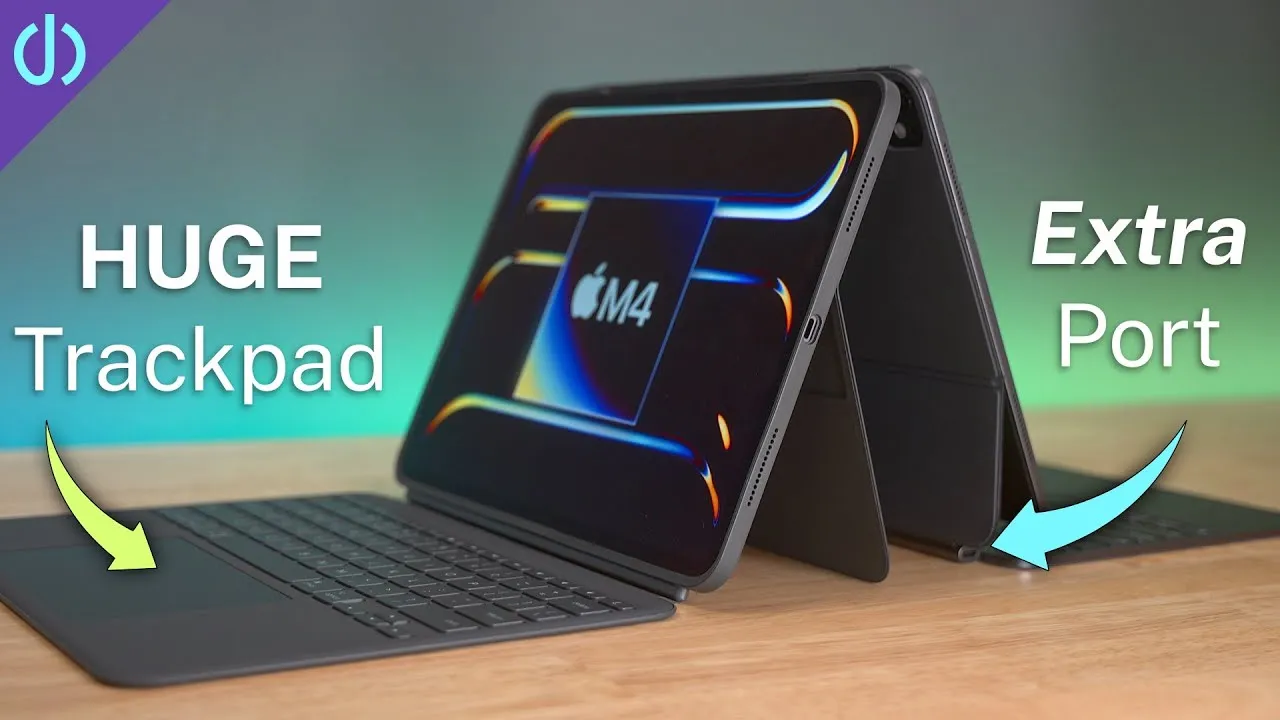
Apple added a USB-C port on the rear left for charging only (no accessories), which is fine: it’s very helpful using the iPad while charging, passing power through the pogo pins to the Smart Connector. The back left location is much better than the middle right of the iPad: it keeps the cord out of the way and the iPad’s own USB-C port free for accessories (an SD card reader, an SSD, an Ethernet or HDMI adapter, or a hub).
The rubber material
It looks really nice new: matte with a tackiness that keeps the iPad where you put it. Over time, it picks up grease and oil that get harder to remove: Goo Gone, rubbing alcohol and Dawn help for a while, but eventually stains from skin or tables sink in. Along with worrying about scratching or tearing it, that gave me anxiety about using it. The best thing for me was a skin: a comment pointed me to SopiGuard. It was easy to apply (the front, back and insides in about 20 minutes), makes the Magic Keyboard feel like a different device, more durable, and nothing stains it like the rubber.
Damage
I damaged mine when making my 6-week review: I tried to adjust the screen from the bottom of the iPad and wasn’t holding the iPad when it popped off, leaving a small gouge next to the delete key. Some people decided not to buy it because of that. But when you use it, you can feel that you should adjust the angle from the top of the iPad, which stays put with the magnets and has never fallen off unexpectedly. The sharp edge of the iPad fell onto a sharp rubber-covered edge of the case: an aluminum case would have dented. It was my fault, not a design flaw.
Update: while finishing the edit, I noticed a second ding on the keyboard with no excuse; I have no idea where it came from. It doesn’t change my overall feelings, though I see how others might decide this isn’t for them because of the cost and the material. If mine died or I lost it traveling, I wouldn’t hesitate to buy another right away.
Weight
The 12.9-inch Magic Keyboard is nearly the weight of the iPad Pro itself, and together they’re about the weight of a 13-inch MacBook Pro. It might shock someone who assumes the iPad stays slim and light. It’s not an issue for me, since it’s acted as my laptop replacement for months, but if I carried it and a laptop frequently, I’d ditch one.
Battery
As reported elsewhere, there’s a little extra battery drain when idle and attached, which most people attribute to the keyboard backlight (I’ve seen the keyboard light on while the iPad slept). It’s usually not noticeable, but sometimes I found much lower battery life than I expected. If you leave the iPad idle a long time, folding it helps.
Price
There’s no getting around it: $300 for the 11-inch and $350 for the 12.9-inch, about 35 to 38% of an iPad Pro’s cost and 50% of the new iPad Air 4’s. You could get a $15 Bluetooth keyboard, a $20 mouse and a case, but that’s clunky; Logitech’s case with a trackpad is cheaper but bulkier with a larger footprint, and no other case offers an additional charging port. For me, it offers everything I need in a laptop replacement: adjustable viewing angles, a great backlit keyboard, a built-in trackpad and an extra charging port in one portable solution. The trackpad lets me edit text, scroll, launch apps and go home without touching the screen, and attaching and detaching the iPad in a second switches it between tablet and productivity device.
Verdict
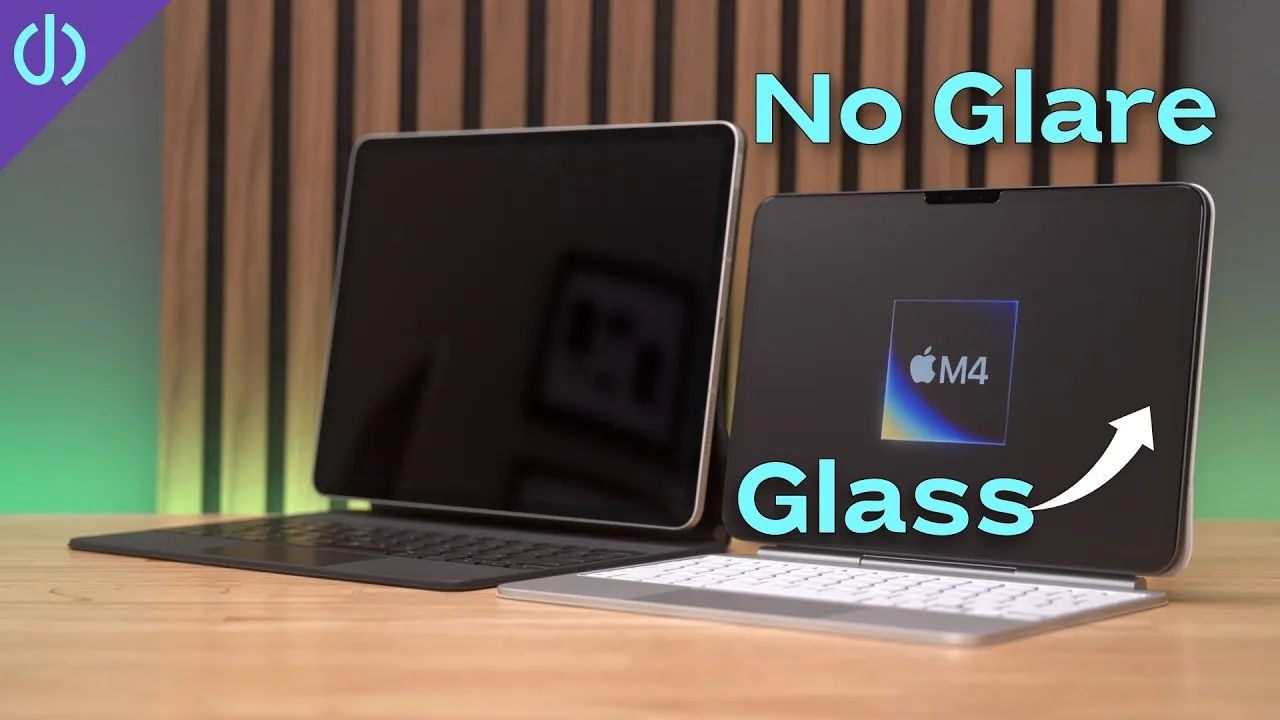
Yes, the iPad Magic Keyboard is worth it: after a few hours, you can see how one accessory transforms an iPad from content consumption to content creation. If you want to use it outside, install a matte screen protector for anti-glare and a better Pencil texture (see my video on that).
Links
- https://www.youtube.com/watch?v=u2y0Y1U18Ok
- https://gleam.io/XwnpO/iphone-se-giveaway
- If this was helpful I have a tip jar
- Apple Pencil 2
- SopiGuard 3M Matrix Skin for iPad Magic Keyboard 12.9
- SopiGuard for 11
- Magic Keyboard for 11” iPad Pro
- Magic Keyboard for 12.9” iPad Pro
- iCarez Matte Screen Protector 12.9”
- iCarez Matte Screen Protector 11”
- AirPods with Wireless Charging Case
- AirPods Pro
- Samsung T7 SSD
- AnkerUSB-C to USB 3.0 Adapter
- Apple Lightning to USB3 Camera adapter
- Apple USB-C Digital AV Multiport Adapter
- Apple Magic Mouse 2 White
- Apple Magic Mouse 2 Grey
- Apple Magic Trackpad 2 White
- Apple Magic Trackpad 2 Grey
- Yoassi Tripod Mount for iPad
- Amazon Basics 60” tripod
- Manfrotto Pixi Mini Tripod
- • Can You Use iPad as Your ONLY Computer?
- • Best iPad Accessories
- • Turn your iPad into a laptop
- • Make USB Drives Faster on iPad
- • SopiGuard Skin Install iPad Magic Keyboard
- • SopiGuard Skin removal
- Sony A6400
- Sigma f1.4 16mm E Mount Lens
- Rode VideoMic NTG
- iPad Pro 12.9
- Used DJI OSMO 3 Gimbal for some shots
- Tascam DR-10L Audio Recorder with Lav
In this video
Some links in this post are affiliate links, which means that if you click on one of the product links, I may receive a small commission. See my ethics statement.