The BEST 4K Monitor Under $300 for Mac? Dell S2725QC Review
If you’re looking for a good display under $300 for your MacBook Air, Mac mini, or MacBook Neo, I think I found the one: the Dell S2725QC, a 27-inch 4K display with a 120 Hz refresh rate and a great contrast ratio. In some areas it’s more impressive than much more expensive displays.
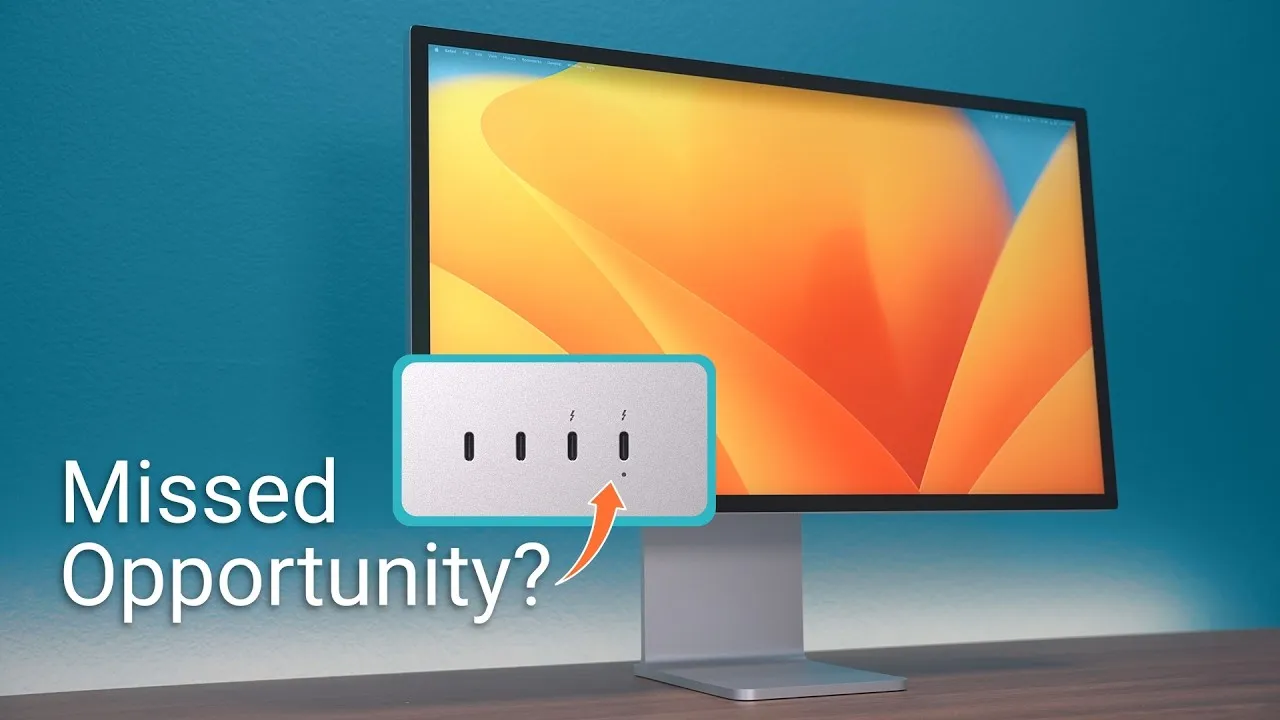
Full disclosure: I use the Studio Display XDR every day and I love it, but most people don’t want to spend $3,200, or even $1,600 for the regular Studio Display. At under $300 on Amazon and Best Buy at the time of recording, this Dell is a freaking deal. That’s not to say everything is perfect.
Design
It’s all plastic, no way around that at $300, but it looks sleek and modern, with slim bezels that should be the standard for all displays in 2026. The base is clean, white and minimal, with no specs or logos, and the back is mostly white with a Dell logo.
The stand adjusts height, swivel and tilt, and rotates 90°. It’s not the most stable, with some wobble from motion or vibration on the desk, but it’s VESA compatible if you want an arm.
Ports
HDMI and USB-C, which might be limiting for some. On the bottom are a USB-C port that handles DisplayPort over a single cable, and the first HDMI port. USB-C power delivery is 65 W, versus 90–95 W on many others. Honestly, for a MacBook Air or MacBook Neo that’s more than enough, and even an M5 Max MacBook Pro would need hammering hour after hour for the battery to drop.
On the back are a USB-A port and a second HDMI port. There’s no built-in KVM. Hidden underneath is a pop-out hub with one USB-A and one USB-C at 5 Gb/s, which is really convenient. And it has a built-in power supply: no brick, just one cable. I love that.
The display
For the price, it’s so good. Look at the backlight consistency: no big bleed on the sides and no blotchy areas. It’s good enough that I bought two.
Dell doesn’t claim it’s super accurate, just 99% of sRGB. With my colorimeter: about 80% of P3 (most Macs are mid-to-upper 90s), nearly 1500:1 contrast as the specs say, and an overall Delta E under 2, which is pretty darn good. Brightness is listed at 350 nits; I measured 390, and at about 80% brightness it’s plenty in my office with all my studio lights on.
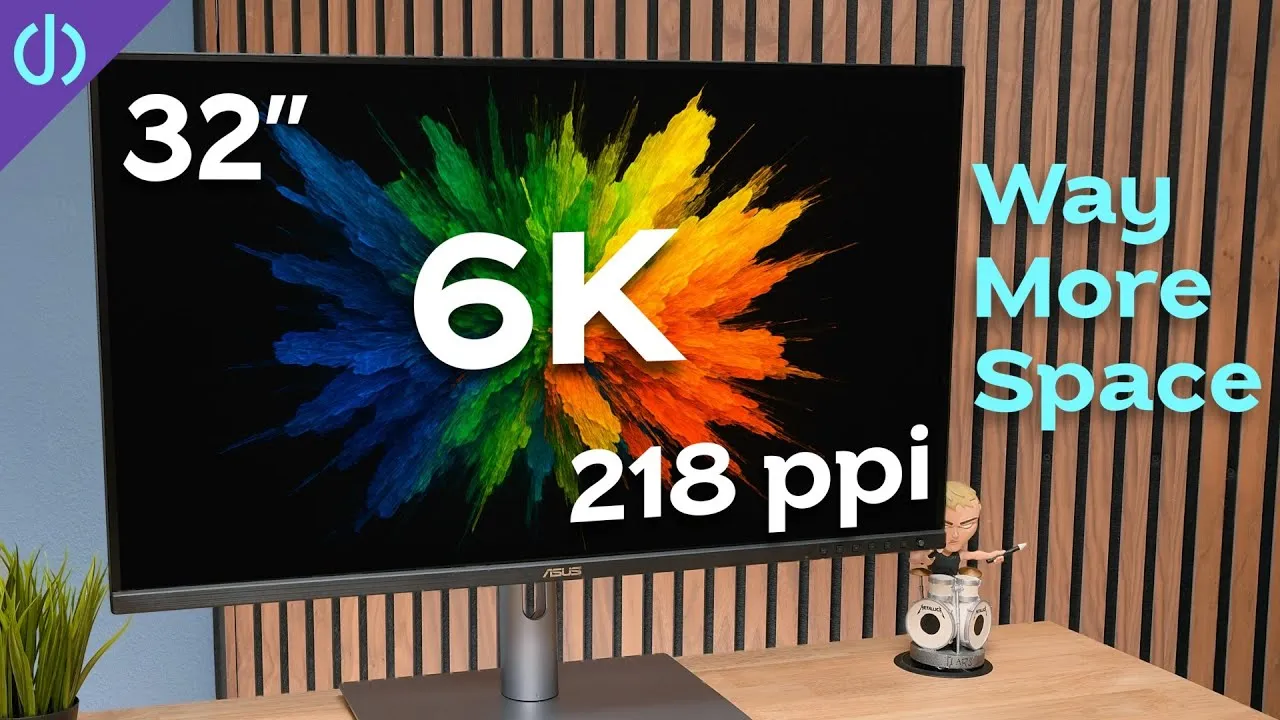
It’s 163 pixels per inch. Yes, people will say it’s not 5K and not sharp enough. But at $300 it doesn’t matter, and as my eyes age, it matters less; I mostly need things bigger anyway. macOS doubles the 1080p-looks-like resolution, so everything is pixel-doubled and sharp with no aliasing.
A big surprise at this price is 120 Hz. Moving windows and scrolling a website is smoother and clearer than on a 60 Hz display, and Mac games can take advantage. Movies look fantastic: with the contrast and uniformity, I’m not distracted by weird artifacts in letterbox bars like on some more expensive displays.
Speakers
Every other display I test falls down here, but the S2725QC’s speakers are actually okay, which is a huge compliment. They get pretty loud and are usable for everyday content. They don’t have the bass and treble of the Studio Display XDR, but for a clean, cheap setup you can use them for a while and add speakers later.
Brightness and volume from the keyboard
The joystick on the back kind of sucks. I think I’ve tried every third-party utility, and the easiest is DisplayBuddy. Not a sponsor; I bought a license. Brightness from the keyboard works perfectly, 0–100% in 5% steps. Volume works too, but 5% on this Dell is too loud: my office is 45–55 dB, and pink noise at 5% hits 70 dB, 50% hits 83, and 100% hits 88. My Studio Display XDR at one tap is a comfortable 58 dB. Option + Shift fine-grained steps don’t work with DisplayBuddy here, so for a quieter level, use DisplayBuddy’s menu bar slider at 1–2% or the joystick.
Verdict
A great display at a price I don’t think you can beat: 4K, 120 Hz, high contrast, consistent backlight, and usable speakers better than much more expensive displays. Beyond some small nitpicks, I have no issues recommending it to anyone with a Mac mini or MacBook Air, or really any Mac when you want to spend under $300.
Links
In this video
- 00:00 Introduction
- 00:45 Design and Build Quality
- 01:36 Ports and USB C Connectivity
- 02:56 Display Quality and Testing
- 03:28 Color Accuracy and Contrast
- 04:01 4K Resolution for Mac
- 04:46 120Hz Performance and Gaming
- 05:30 Movies, Brightness, and Uniformity
- 06:25 Built in Speakers
- 07:19 DisplayBuddy and Mac Controls
- 09:15 Final Verdict
Some links in this post are affiliate links, which means that if you click on one of the product links, I may receive a small commission. See my ethics statement.