Accessories for the new iPad Air 4 2020
The iPad Air 4 has a redesigned iPad Pro-like design, a larger screen with smaller bezels and a new power button with Touch ID. It’s fantastic as is, but a few accessories get even more out of it. iPads aren’t just for basic games and Netflix anymore. (This iPad isn’t mine: I get to review it before it goes to its owner.)
Case: Apple Smart Folio
In pink Citrus, which looks nice with the green iPad Air. Unlike the older smart covers (a magnetic flap on the side), the Smart Folio snaps to the back, protecting the front and back, folds into a three-fold stand for video, or flips around for typing.
Keyboards
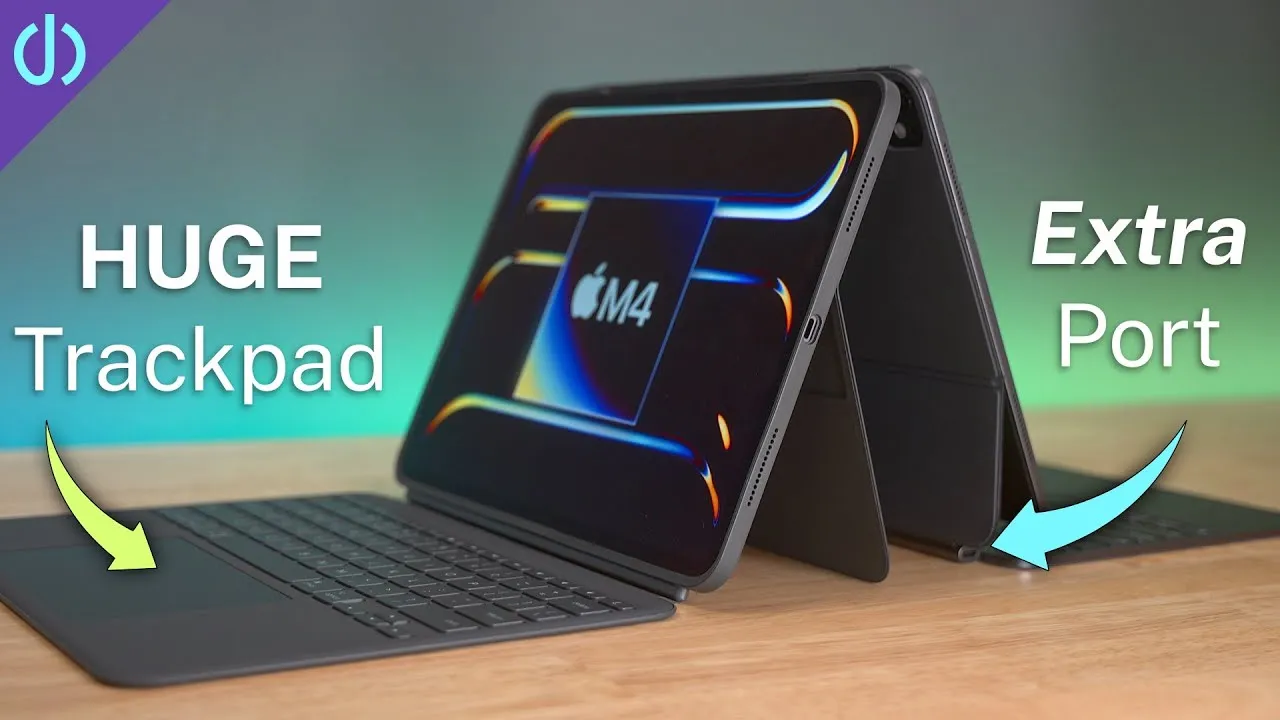
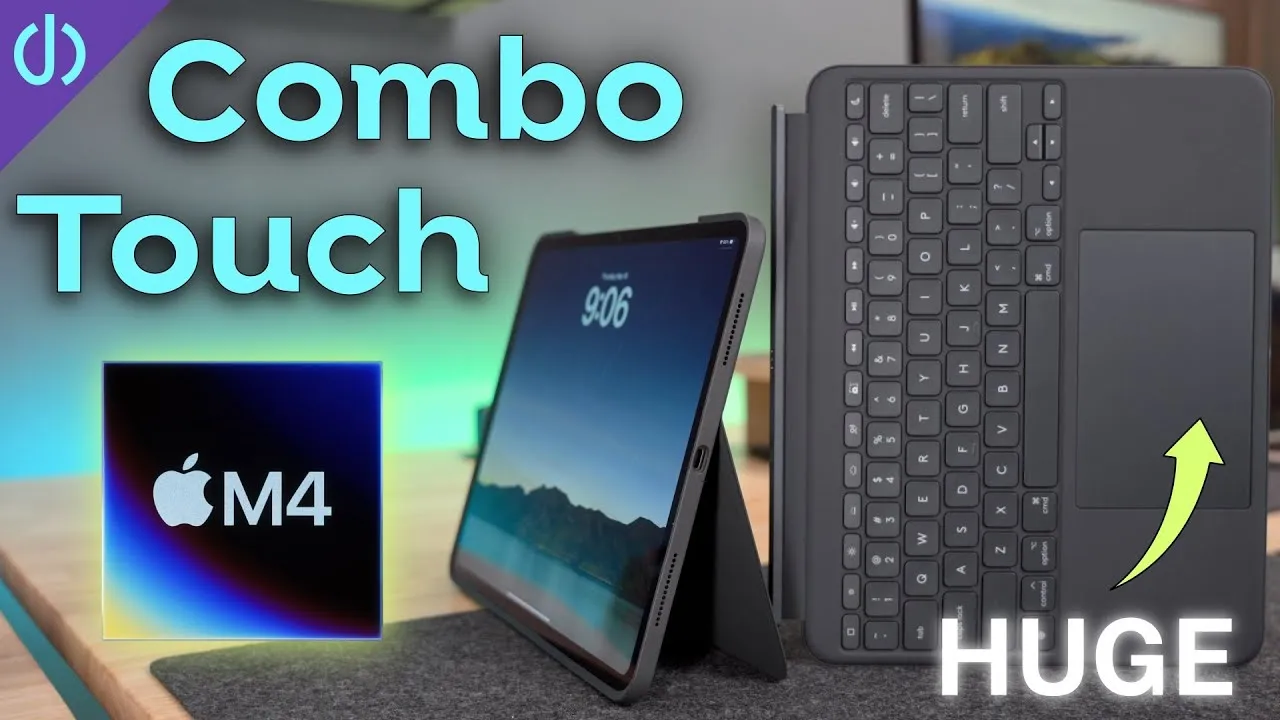
- Apple Magic Keyboard (the one I’d recommend): I love it. It transforms an iPad Pro, and now the Air, into a real productivity device. It has the floating design, backlit scissor-switch keys and a glass trackpad you can click anywhere, great with the mouse support added to iPadOS early this year. The downside: $300 for the 11-inch. If I had this iPad, it would be the first thing I’d buy.
- Smart Keyboard Folio (introduced with the 2018 iPad Pros; not compatible with the Air 4): the same footprint, but instead of the floating design, two set positions. It’s lighter, with a fabric covering and unlit keys. I liked it until the Magic Keyboard, and it’s still a good typing experience, with no trackpad. You could save the difference toward a Magic Mouse or Trackpad.
Trackpad or mouse
- Magic Trackpad 2: a huge trackpad with plenty of room to swipe, scroll and gesture. It’s Force Touch, so you can press anywhere for haptic feedback. Two fingers swipe down on the home screen to search, three fingers go home, three fingers bring up multitasking, and more.
- Magic Mouse 2: better for text editing, which I find more precise (I don’t have to work as hard to place the cursor). It has the touch surface for scrolling and swiping (I think Apple’s inertial scrolling on iOS is better than on the Mac), but you can’t do as much as with the trackpad: no gesture for home or multitasking.
You can also use almost any Bluetooth mouse and customize the buttons (see my video on that).
iCarez matte screen protector
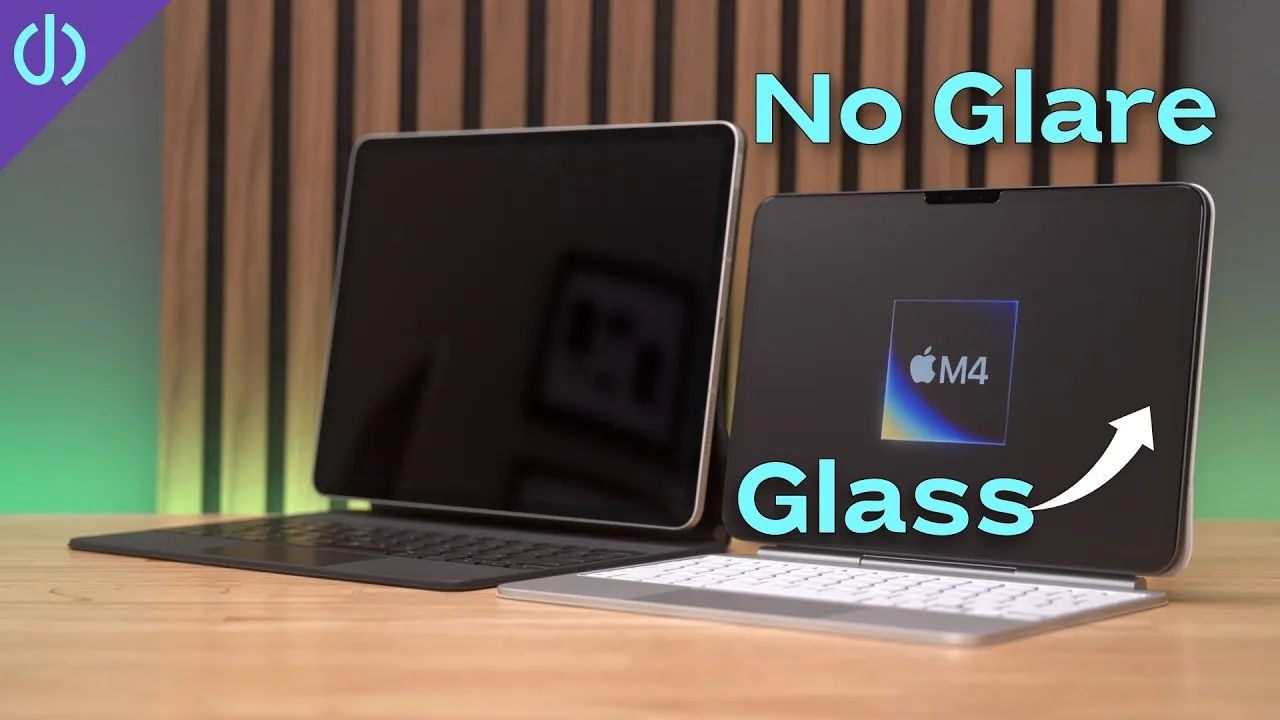
I’ve added these to all my devices in the last year. The films are anti-glare and help against fingerprints. Install: clean the screen with the included wipes, align the protector and hold it, place stickers at the Face ID end as hinges and wrap them around the edge, use a lift sticker as a handle, remove the back plastic and carefully apply. There will be some bubbles; if you’re happy with the alignment, remove the hinge stickers and the top layer of plastic, and use the microfiber and squeegee to push bubbles to the sides. For dust specks, use a sticker to raise an edge and a dust sticker to remove them. The anti-glare benefit: I can use the iPad in very bright places, outside or in a bright room, without just seeing my reflection or having the screen drowned out. It’s also easier to clean than the iPhone’s glass.
USB-C
The Air 4’s USB-C port allows many accessories: connect cameras directly (USB-C cable, or a USB-A to USB-C adapter), use a USB-C SD card reader for faster transfers (like the Cocoka reader with a built-in USB-C port), or a USB-C hub with ports for USB drives, SD cards, Ethernet and video out to an external monitor. For creatives (CAD, Photoshop, video editing), moving very large files is a pain, and AirDrop isn’t always 100% reliable: you can now connect an SSD directly. With a 1 TB Samsung T7 formatted APFS, copying a 1.11 GB file to the iPad Air took about 5 seconds (around 220 MB/s), and from the iPad to the SSD 7 to 8 seconds (about 150 MB/s).
Apple Pencil 2
Unlike the original, it snaps magnetically to the side to charge and pair. I’m not a heavy Pencil user, but I fidget with it and draw for work notes. With Scribble in iOS 14, you can write in any text field, so you don’t need to put the Pencil down to do something else: search in Safari and it converts to text.
Gamepad
Almost all Apple Arcade games support gamepads, and third parties are adding support. I’m not a big gamer anymore, but I prefer a physical controller, and you can now pair an Xbox or PlayStation controller directly to iOS devices.
AirPods
Always in my pocket since I got my first pair in 2017: incredibly small and light, for work Zoom calls, movies and games. iOS 14’s fast switching moves them between devices automatically: listen to a podcast on your phone, pull up your iPad for YouTube, and they switch.
With a keyboard and mouse, you can get much more done on an iPad. The USB-C port expands the possibilities and speeds up file transfers, AirPods and a gamepad add entertainment, and a screen protector keeps your screen mint and easier to see in bright environments. What accessories do you use? See my video on making the iPad more like a laptop.
Links
- If this was helpful I have a tip jar
- Apple Pencil 2
- Magic Keyboard for 11” iPad Pro and Air 4
- Logitech K380
- SopiGuard for 11
- iCarez Matte Screen Protector 11”
- AirPods with Wireless Charging Case
- AirPods Pro
- Samsung T7 SSD
- AnkerUSB-C to USB 3.0 Adapter
- Apple Magic Mouse 2 Grey
- Apple Magic Trackpad 2 Grey
- Andobil USB-C Hub
- XBOX Controller
- Apple Lightning to USB3 Camera adapter
- Apple USB-C Digital AV Multiport Adapter
- Apple Magic Mouse 2 White
- Apple Magic Trackpad 2 White
- Yoassi Tripod Mount for iPad
- Amazon Basics 60” tripod
- Manfrotto Pixi Mini Tripod
- • Upgrading to iPad Air 4
- • iPad Magic Keyboard 6 Weeks Later
- • Turn your iPad into a laptop
- • Make USB Drives Faster on iPad
- • SopiGuard Skin Install iPad Magic Keyboard
- • SopiGuard Skin removal
- Sony A6400
- Sigma f1.4 16mm E Mount Lens
- Rode VideoMic NTG
- iPad Pro 12.9
Some links in this post are affiliate links, which means that if you click on one of the product links, I may receive a small commission. See my ethics statement.