How to Setup a NEW iPhone 16e AND Transfer Your Data!
This is the new iPhone 16e. If you just picked one up, here’s how to get it set up and move everything over from your old iPhone, whether that’s an iPhone XR, iPhone 11, iPhone X, or an iPhone SE: your apps, files, photos, messages, contacts, and phone number.
Two ways to migrate
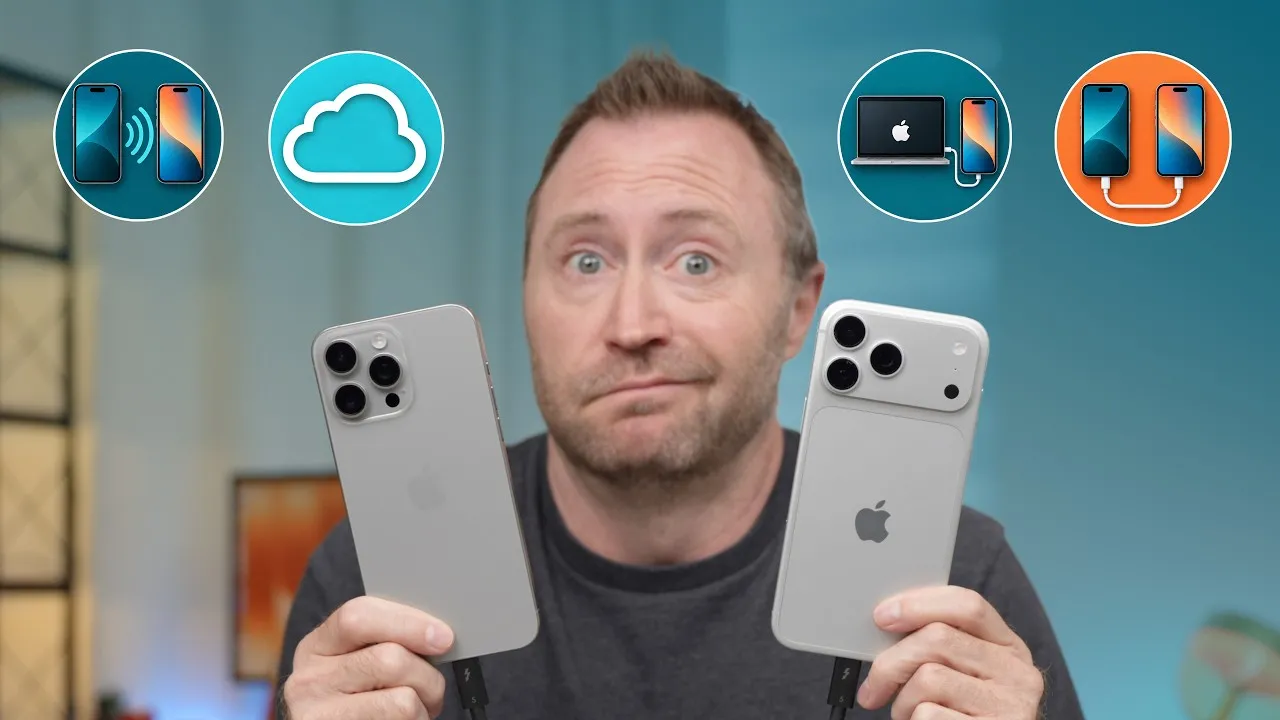
Direct transfer. The two iPhones create their own wireless network and transfer everything except the apps, which still download. My biggest issue with this option is that neither iPhone is usable for the whole migration. If you have a lot of photos and videos and you’re not using iCloud, that can take many hours.
iCloud. If you have iCloud Backup turned on, your backed-up data downloads to the new iPhone, and your old iPhone stays usable the whole time. That’s the option I recommend for most people.
Even if you don’t pay for iCloud storage, Apple gives you free iCloud storage for up to 30 days to back up and restore. On your old iPhone, look for Get ready for your new iPhone at the top of Settings, or go to General → Transfer or Reset iPhone → Prepare for New iPhone and tap Get Started. You can do this days before your new iPhone arrives.
Setting up the new iPhone
- Turn on the new iPhone and swipe up. Your old iPhone offers to set it up with your Apple Account. Tap Continue and use Touch ID or Face ID.
- Scan the animation on the new iPhone with the old one to pair them, confirm you’re setting it up for yourself, and enter the old iPhone’s passcode on the new one. It activates with Apple over Wi-Fi.
- Transfer your phone number. The iPhone 16e has no physical SIM slot. It uses eSIM. With the big carriers like AT&T, T-Mobile, and Verizon this is super simple and takes a couple of minutes. With carriers like Mint or Consumer Cellular it may not work, and you may need the carrier’s app, or worst case, a phone call.
- Set up Face ID. If you’re coming from Touch ID, this is going to be a treat. There’s an optional extra scan if you often wear a mask.
- Choose Download from iCloud. Even with very little data on my old iPhone, I still think iCloud is better for most people. Signing in takes a stupid long time, five to eight minutes.
- Keep the default to move apps, settings and Wallet items. I choose to download updates automatically but install them manually. Turn on Location Services. Look into Stolen Device Protection; I left it off for now. Re-enter the security code for each Wallet card.
- Action button: by default it’s the mute button, but I like setting it to the flashlight. You can also choose visual intelligence, the camera, or a Focus mode.
- Install any required update. At this point you’re done with the old iPhone and can use it while the new one finishes.
After the update, you may have to pair with the old iPhone again. Then the restore starts, downloads what it needs, and reboots. Your apps download in the background. In Settings you can see how much is left, about 5 GB in my case.
Don’t be surprised if the new iPhone runs a little hot for a couple of hours. It’s downloading your data, indexing for search, and setting up Apple Intelligence. Totally normal.
Links
In this video
- 0:00 Migration options
- 2:19 initial setup
- 3:12 transfer phone number to esim
- 4:12 software update and faceID
- 5:04 select migration and iCloud
- 5:44 other setup options, wallet
- 6:38 Apple Intelligence and action button
- 7:38 emergency SOS, forced software update
- 8:18 re-pair, and restore/migration
- 9:27 final steps, restore progress
Some links in this post are affiliate links, which means that if you click on one of the product links, I may receive a small commission. See my ethics statement.